
A computer does not always stay as fast as it was when you first bought or built it. Over time, unused applications, temporary data, demanding programs, heat, and hardware limitations can affect everyday performance. Instead of guessing what is wrong, users can use different tools to understand and maintain their systems.
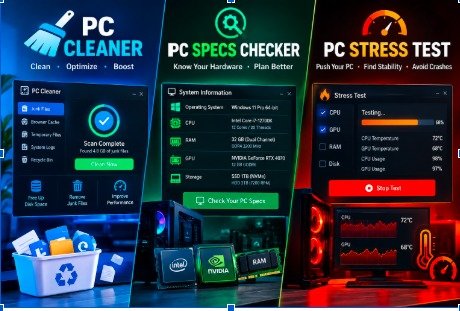
Three useful categories of tools are a PC cleaner, PC specs checker, and PC stress test. Each one has a different purpose. A cleaner helps manage unnecessary data, a specifications checker reveals information about installed hardware, and a stress test examines how a computer behaves during demanding workloads.
Understanding the difference between these tools can make PC maintenance much easier.
What Does a PC Cleaner Do?
A PC cleaner is designed to locate and remove unnecessary data from a computer. A typical Windows system can accumulate temporary files, application leftovers, cached information, old logs, and other data during normal use.
Not all unwanted files have a major effect on speed, but removing unnecessary data can recover storage space and make the system easier to manage. A cleaner can also help users identify applications they no longer need.
It is important to use cleaning software carefully. System folders can contain files that Windows requires to operate correctly. For that reason, users should avoid manually deleting unfamiliar files simply because they appear unnecessary.
When Should You Clean Your Computer?
There is no universal schedule that every computer needs to follow. The right time to clean a PC depends on how frequently it is used and how much software is installed.
For example, someone who downloads large files regularly may need to manage storage more often than a person who mainly uses a computer for web browsing.
A basic maintenance routine can include removing unused applications, reviewing large files, clearing appropriate temporary data, and checking how much free storage remains.
A PC cleaner can make this process easier by bringing several cleanup options together in one interface.
Finding Hardware Information With a PC Specs Checker
Before troubleshooting or upgrading a computer, you need to know what is actually inside it. A PC specs checker can provide an overview of the machine’s hardware and software configuration.
Depending on the application, it may display the CPU model, installed memory, graphics hardware, motherboard information, storage devices, operating system, and other technical details.
This information is useful when buying upgrades. For instance, if you are considering additional RAM or a new storage drive, checking the current configuration first can help you understand compatibility requirements.
A specifications checker is also helpful when installing games or professional applications. You can compare your computer’s hardware with the requirements published by the software developer before deciding whether your system is suitable.
Important PC Specifications to Review
You do not always need to understand every technical specification to evaluate a computer. A few major components provide a useful starting point.
Processor
The CPU performs many of the calculations required by applications. Its model, generation, number of cores, and operating characteristics can help you understand the type of workloads your computer can handle.
Memory
RAM provides temporary working space for running applications. If several programs are open simultaneously, insufficient memory can contribute to slower multitasking.
Graphics Hardware
The graphics processor is especially important for modern games, 3D software, video editing, and other visually demanding workloads. A PC specs checker can help identify the exact graphics hardware installed.
Storage
Storage capacity determines how much data your computer can hold. It is also useful to know whether your system uses an SSD or a traditional hard drive because storage technology can influence loading and file-access times.
Operating System
Checking the Windows edition and system architecture can prevent compatibility problems when installing applications, drivers, or hardware-related utilities.
What Is a PC Stress Test?
A PC stress test deliberately creates a demanding workload so users can observe how their computer responds.
Normal browsing may not push hardware very hard. Gaming, rendering, scientific calculations, or other intensive tasks can place much greater demands on the processor and graphics hardware. A stress test attempts to reproduce sustained workloads in a controlled environment.
During testing, users can monitor temperatures, clock speeds, system behavior, and other available measurements.
The goal is not simply to make the computer work harder. The results can provide useful clues when investigating instability or checking whether a recently changed configuration behaves as expected.
Why Use a PC Stress Test?
A PC stress test can be useful in several situations. Someone who has recently assembled a desktop may want to verify that the system remains stable under sustained workloads. A user who has upgraded cooling or another major component may also want to monitor system behavior.
Stress testing can sometimes expose problems that ordinary activities do not reveal. For example, a computer might operate normally during browsing but restart or freeze when subjected to a prolonged heavy workload.
Testing can therefore be one part of a broader troubleshooting process.
However, users should monitor temperatures and system behavior while testing. A heavy workload can generate considerably more heat than everyday computer use. If temperatures become unsafe or the system behaves abnormally, the test should be stopped and the underlying issue investigated.
How the Three Tools Complement Each Other
Although these tools have different jobs, they can be useful together.
Suppose a computer has become noticeably slower. You could begin by reviewing storage and removing unnecessary data with a PC cleaner. After that, a PC specs checker could show whether the machine has limited RAM, an older processor, or another hardware constraint.
If the computer is experiencing crashes, shutdowns, or instability during demanding tasks, a PC stress test could then be used to examine its behavior under load.
This sequence helps separate different types of problems instead of treating every performance issue as a software problem.
Simple Ways to Improve PC Maintenance
Good computer maintenance involves more than running a cleaning utility. Keep the operating system and important applications updated, maintain reasonable free storage space, and uninstall programs that are no longer required.
Physical maintenance also matters. Desktop users should periodically check for dust buildup around fans, filters, and ventilation areas. Laptop users should avoid covering cooling vents while the device is running.
If a PC becomes unusually hot, slow, or unstable, investigate the cause rather than immediately installing multiple optimization programs. Understanding the actual problem usually makes troubleshooting more effective.
Final Thoughts
A computer performs best when its software, hardware, storage, and cooling are properly maintained. A PC cleaner can help organize unnecessary data, while a PC specs checker provides a clearer picture of the hardware inside the machine. When stability under heavy workloads needs to be examined, a PC stress test can provide additional information.
These tools should not be viewed as instant solutions for every computer problem. Instead, they are useful parts of a broader maintenance and troubleshooting process. By understanding what each tool does and using it appropriately, PC users can monitor their systems more effectively and make better decisions about upgrades, maintenance, and performance issues.
Read More From Magazinepanda