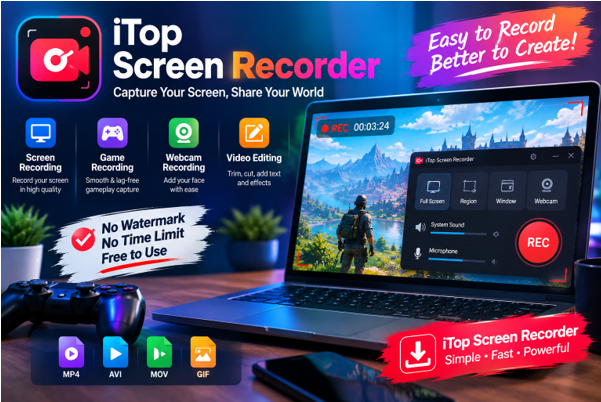

Recording a computer screen has become useful for many different tasks. People create tutorials, capture online meetings, record presentations, save gameplay, and make videos for social media. Instead of using complicated editing or recording software, many users prefer a simple screen recorder that can capture activity directly from the desktop.
iTop Screen Recorder is designed for this purpose. It provides tools for recording screen activity while giving users control over the recording area, audio, and other options. Whether you need to create a quick tutorial or capture a longer video, having a dedicated recording utility can make the process more convenient.
What Is a Screen Recorder?
A screen recorder is software that captures what is displayed on a computer screen and saves it as a video file. Depending on the application, it may also record system sounds, microphone input, webcam footage, or other elements.
Screen recording can be useful for explaining software features, demonstrating a problem, creating educational content, or recording gaming sessions. The available features vary between different programs, so users should select a tool according to the type of content they want to create.
What Is iTop Screen Recorder?
iTop Screen Recorder is a desktop recording application that allows users to capture selected areas or the entire screen. It is intended for people who want to record on-screen activity without going through a complicated setup process.
The software can be used for different recording situations, including tutorials, presentations, video calls, demonstrations, and gameplay. Users can choose the recording area and configure available audio options before starting.
This makes it suitable for both quick recordings and more structured video projects.
Why Use iTop Screen Recorder?
One reason people use a dedicated screen recorder is convenience. Recording the screen manually through complicated tools can require several steps, especially for users who are new to video production.
iTop Screen Recorder provides a straightforward interface where common recording controls can be accessed easily. Users can select what they want to capture and begin recording without needing advanced technical knowledge.
It can also be useful when creating instructional content. Instead of explaining every step with text, a recorded demonstration can show exactly where to click and what actions to perform.
Recording Different Areas of the Screen
Not every recording requires the entire desktop. Sometimes you may only want to capture a particular application window or a specific section of the screen.
Choosing a smaller recording area can help keep the final video focused on the important content. For example, a software tutorial may only need to show one application, while a presentation might require the entire screen.
Before starting a recording, check the selected area carefully. This helps prevent unwanted windows, notifications, or unrelated desktop activity from appearing in the final video.
Recording Audio and Webcam
Visual content is only one part of many screen recordings. Tutorials and presentations often require voice narration, while gameplay videos may benefit from microphone commentary.
Depending on the available settings, users can configure audio sources before recording. It is a good idea to test the microphone first to make sure the volume is appropriate and there is no unnecessary background noise.
Webcam recording can also be useful when creating educational videos, product demonstrations, or personal presentations. Combining screen content with a camera view can make certain types of videos more engaging.
Using a Screen Recorder for Tutorials
Screen recording is particularly helpful for tutorials because viewers can follow each step visually. A software guide, for example, can show the complete process instead of relying only on written instructions.
When creating a tutorial with iTop Screen Recorder, prepare the steps before pressing the record button. Close unnecessary applications, organize the desktop, and make sure the correct window is visible.
Speaking clearly and moving through the process at a reasonable pace can also make the finished recording easier to understand.
Recording Gameplay
Gamers can use a screen recorder to capture gameplay, create highlights, or share interesting moments. However, recording can use additional system resources, so performance should be checked before starting a long session.
If a game already uses most of the available CPU, GPU, or RAM, recording may affect performance. Adjusting game settings or recording quality may help maintain a smoother experience.
It is also useful to check available storage because high-quality video files can become large, particularly during extended recordings.
Tips for Better Screen Recordings
A few simple preparations can improve the quality of the final video. First, remove unnecessary desktop notifications and close programs that are not needed. This keeps the recording clean and reduces distractions.
Next, choose an appropriate resolution and recording area. Higher quality can produce clearer video but may also create larger files.
For voice-based content, test the microphone before recording the complete video. Finally, watch a short sample recording before starting a long project. This can help identify problems with audio, screen selection, or video quality early.
Is iTop Screen Recorder Worth Using?
The usefulness of any screen recorder depends on what the user needs. Someone who only wants occasional screenshots may not need a dedicated recording application, while users who regularly create tutorials, presentations, gameplay videos, or demonstrations can benefit from having recording tools readily available.
iTop Screen Recorder offers a practical way to capture desktop activity while providing options for different recording situations. Its usefulness ultimately depends on the features required and the type of content being created.
Conclusion
iTop Screen Recorder provides a convenient solution for users who need to capture activity from their computer screen. From tutorials and presentations to gameplay and demonstrations, screen recording can make it easier to explain, preserve, and share visual information.
For better results, prepare the desktop before recording, select the appropriate capture area, check audio settings, and choose a suitable recording quality. With these simple steps, a screen recorder can become a useful tool for everyday content creation and communication.
Read More From Magazinepanda